
U.S. Bank Mobile Banking
U.S. Bank MobileFinance
4.7219.80K Reviews
- Version
- 3.83.65
- Installs
- 10.00M
- Age Rating
- Everyone
Screenshots
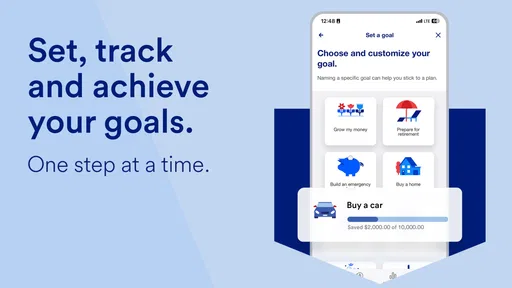
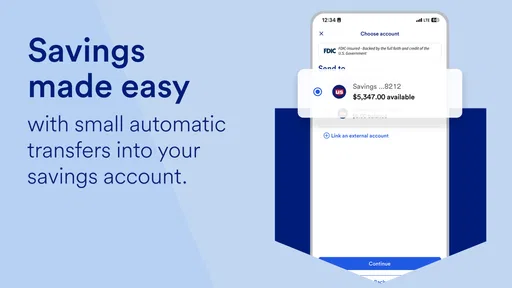
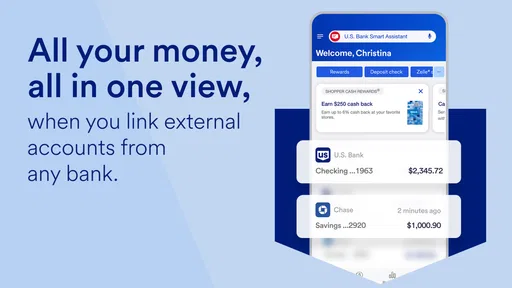
Our Review of U.S. Bank Mobile Banking
 Analysis by Appyee
Managing a bank account from a phone can feel either wonderfully simple or unnecessarily stressful, depending on how clearly the app guides you through the first few tasks. I spent time with U.S. Bank Mobile Banking as a finance app, focusing on the things a first-time user is most likely to need: getting started, checking what is available, completing a basic banking task, and understanding where the app fits compared with a browser or another banking app.
My overall impression is that it is built for people who want their everyday U.S. Bank activity close at hand rather than tied to a desktop visit. The app is free, aimed at Everyone, and developed by U.S. Bank Mobile. It has been available since October 4, 2011, so this is not a brand-new experiment. The current version is 3.80.70 and requires Android 10 or later, which is worth checking before installing it on an older phone.
What to expect before you begin
The first thing to understand is that U.S. Bank Mobile Banking is a companion to a U.S. Bank relationship, not a general-purpose money manager that combines every bank and card you use. That distinction matters. If you already bank with U.S. Bank, the app is designed to put account information and routine banking actions in one mobile place. If you are looking for an app that creates a new account from scratch or brings together unrelated financial institutions, this is probably not the tool I would choose.
The app has earned a 4.7 average from around 510 thousand ratings, with roughly 217 thousand written reviews and over 10 million installs. Those figures suggest that it is widely used, but they should not replace your own judgment. Banking apps are particularly personal: a feature that feels convenient to one customer may be less important than reliable access to a particular account, card, or service for someone else.
Before opening it for the first time, I would have three things ready: the phone you normally use, the sign-in details for your U.S. Bank relationship, and enough time to complete any security checks the app requests. I would avoid trying to set it up while rushing through a checkout line or waiting for a bus. A calm first session makes it easier to notice whether the account information looks right and whether you understand the navigation.
It is also sensible to update your phone before installing a finance app. The minimum operating system is Android 10, and keeping the device current is a practical part of protecting any banking session. I would install it only through the official app marketplace, verify that the developer is shown as U.S. Bank Mobile, and avoid entering banking credentials into an imitation app reached through an unsolicited message.
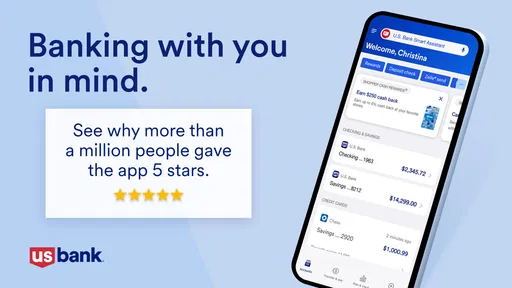
Once installed, the most useful expectation is not that the app will teach you personal finance. It is more focused than that. I see it as a control panel for checking your banking position and handling ordinary account-related work when opening a browser would be inconvenient. That focused role is one of its strengths, but it also means it may not replace a budgeting app, a spreadsheet, or a full desktop banking session for every user.
Setting up the first session
My advice is to treat setup as a verification step rather than a race to the home screen. Open the app, follow the sign-in process, and read each prompt instead of accepting everything automatically. If the app offers a choice about how you return to future sessions, select the option that matches your own balance between convenience and security. I prefer a quick method that still keeps the phone protected with a device lock, but I would not enable a shortcut on a phone that other people regularly use.
After signing in, pause on the first screen. Confirm that the account names and balances look familiar, and look for the main navigation areas before tapping through randomly. This small check is useful because it gives you a mental map. You want to know where account information lives, where cards or payments are handled, and where support or settings can be found before an urgent need appears.
A common mistake is to judge the app during setup by how quickly it reaches the dashboard. For a financial tool, a slightly slower, more deliberate process is preferable to an unclear one. I would also avoid saving credentials in a browser or password manager you do not trust simply because you want to finish faster. Use a reputable password manager if that is already part of your routine, and keep your phone itself protected.
First-time users often wonder whether they should set up every available option immediately. I would not. Start with the basics: sign in, identify your accounts, inspect the dashboard, and find the area you are most likely to use. You can learn the rest when you have a real reason. This approach reduces clutter and makes it easier to spot an unfamiliar prompt or unexpected account detail.
Another useful habit is to test the app when your connection is stable. Mobile banking is a poor place to discover that a weak signal is causing pages to load slowly or actions to appear incomplete. If a screen seems stuck, I would wait for a clear result before trying again. Repeating a payment or another financial action without checking its status first can create avoidable confusion.
Your first meaningful success
For most new users, the first successful action should be simple: sign in, locate the account you care about, and confirm that the information shown matches what you expect. That may sound modest, but it answers the most important initial question: can I reach my banking information without needing a computer? Once that works, the app starts earning its place on your phone.
I recommend using the first session to answer three practical questions. Which screen shows the account you check most often? Where do you return after opening a detail view? How do you get back to a secure sign-out or settings area? The exact path may feel obvious after a few visits, but learning it deliberately gives you confidence when you are checking a transaction away from home.
A realistic everyday scenario is checking your available money before making a large grocery purchase, paying a bill, or moving through a busy travel day. I would open the app before reaching the register, confirm the relevant account, and close the session once I had the information I needed. That is where a mobile banking app is genuinely useful: it turns a question that might otherwise wait until evening into a quick decision.
The more important lesson is to distinguish an account balance from the amount you personally feel comfortable spending. A banking app can show the account position, but it cannot know about cash expenses, pending plans, or a purchase you have not yet recorded elsewhere. I would use the app as the current banking reference, not as a substitute for a complete household budget.
When you move from checking information to performing an action, slow down again. Review the destination account, amount, date, and any confirmation screen before submitting. Afterward, look for a clear completion message or updated activity rather than assuming that a tap automatically finished the job. This is one of the most valuable habits I can recommend with any mobile banking app, including this one.
If you use several U.S. Bank products, the app can be more helpful than a generic finance dashboard because it is centered on that institution’s own relationship with you. The trade-off is that it may be less useful as a broad financial overview. Someone who wants one screen containing accounts from several banks may prefer a separate aggregation service, while someone who wants direct access to U.S. Bank information will likely appreciate the narrower focus.
Where new users may hesitate
The most common confusion is expecting every banking task to look like a simple balance check. Financial apps often separate viewing, moving money, paying, and managing cards because each action has different consequences. If you cannot find something immediately, I would first return to the main navigation and identify which category matches the task instead of opening multiple screens at random.
Another point of friction is terminology. Words related to available funds, posted activity, pending activity, transfers, and payments can sound similar while describing different situations. I would read the labels around an amount instead of relying only on the number itself. If a transaction seems unfamiliar, compare the merchant name and timing with your own records before deciding that the app is showing an error.
Notifications can also create uncertainty. A message may be useful when it helps you notice activity, but an alert is not the same thing as a complete financial review. I would treat notifications as prompts to open the app and verify details, not as a replacement for checking the account directly. This is especially important if your phone displays sensitive information on a lock screen.
Security prompts may feel inconvenient, particularly when you are trying to check something quickly. In my view, that friction is acceptable for a banking app. The wrong response is to weaken your phone’s protection or share sign-in details just to make access faster. If a prompt does not make sense, stop and use the app’s support route or the bank’s trusted official channel rather than following instructions from an unexpected text or email.
There is also a practical limitation in relying on any mobile app: a phone screen is not ideal for reviewing a long history, comparing many transactions, or organizing detailed records. For those jobs, I would use a larger screen or export information through the appropriate official process if available to you. The mobile app is strongest for immediate awareness and routine access, not necessarily for every piece of financial administration.
How it compares with the usual alternatives
Compared with signing in through a mobile browser, a dedicated app feels more natural for repeated checks. You do not need to remember a browser path, and the interface is built around touch rather than a full desktop layout. I would still keep the browser option in mind for situations where the app does not present enough detail or where I am already working on a computer.
Compared with a general budgeting app, U.S. Bank Mobile Banking has a different priority. A budgeting tool may be better for categories, long-term spending patterns, or combining accounts from multiple institutions. The U.S. Bank app is the better fit when the question is directly connected to your U.S. Bank relationship and you want the information from the source rather than through a separate service.
Compared with visiting a branch or calling support, the app is more convenient for routine information and straightforward actions. It does not remove the need for human help when a situation is unusual, disputed, or too important to resolve through a screen. I would not force a complicated problem through the app simply because it is available; choosing a support channel is part of using banking technology sensibly.
That comparison also explains who should skip it. I would look elsewhere if you do not use U.S. Bank, if your main goal is detailed budgeting across several institutions, or if you strongly prefer doing all financial work on a desktop. I would also be cautious about making it your only access method if your phone is old, shared, frequently offline, or not protected with a secure lock.
Useful habits after the first visit
Once the basic sign-in works, create a small routine rather than tapping through every section. Check the app when you need to verify a balance or recent activity, and review the details of any important action before confirming it. This keeps the app useful without turning every notification into a source of anxiety.
One non-obvious advantage of learning the navigation early is that it reduces mistakes under pressure. If your card is misplaced, a payment looks unfamiliar, or you need account information while away from home, you will already know where to begin. I would spend a few quiet minutes exploring the account, card, and settings areas now, without submitting anything, so that an urgent situation does not become your first tour of the app.
Another good workflow is to separate checking from planning. Use the app to establish what the bank currently shows, then use your preferred budget or notes system to decide what that means for the rest of the week. This avoids treating one balance as a complete picture of your finances and makes the app complement rather than compete with your other tools.
If more than one person can access your phone, review your device lock and notification display before using mobile banking regularly. Convenience features are only helpful when they fit the privacy of your situation. I would rather spend a few extra seconds protecting a session than expose account details through a shared device or an unlocked screen.
It is also worth keeping the application maintained. The listed version is 3.80.70, and updates can change navigation or improve compatibility. After an update, I would briefly check that the screens I use most often are still where I expect them to be. That simple review prevents surprises when you need the app quickly.
My recommendation for a first-time user
I recommend U.S. Bank Mobile Banking to an existing U.S. Bank customer who wants dependable mobile access to everyday banking information and prefers a direct institutional app over a general financial dashboard. Its strongest quality is focus: it puts the bank relationship in a format that is easier to reach during ordinary moments, such as checking funds before a purchase or reviewing activity after a transaction.
I would not describe it as a replacement for every financial tool. It is not the app I would choose as the center of a detailed multi-bank budget, and I would move to a browser or support channel when a task needs more space or personal assistance. Those are not failures so much as boundaries. Knowing where the app ends helps you use it safely and efficiently.
For the smoothest start, install the free app on a supported device, confirm that U.S. Bank Mobile is the listed developer, sign in carefully, verify your account information, and complete one low-risk information check before attempting anything more consequential. The best first win is confidence, not speed. Once you know where your account appears and how to verify an action, the app becomes a practical part of your routine rather than another financial service to figure out in a hurry.
After using it this way, I see U.S. Bank Mobile Banking as a sensible choice for direct, everyday account access. Its large user base and strong average score make it worth considering, but the real test is whether its focused approach matches your needs. If it does, the path from installation to useful banking access is reassuringly straightforward; if you need cross-bank planning or deep record management, keep a complementary tool or a traditional browser session in your routine.
Privacy and Permissions
See what permissions an app requests and how it handles your data.
- Identity
- find accounts on the device, read your own contact card
- Contacts
- find accounts on the device, read your contacts
- Location
- approximate location (network-based), precise location (GPS and network-based)
- Phone
- read phone status and identity
- Photos/Media/Files
- read the contents of your USB storage, modify or delete the contents of your USB storage
- Storage
- read the contents of your USB storage, modify or delete the contents of your USB storage
- Camera
- take pictures and videos
- Microphone
- record audio
- Wi-Fi connection information
- view Wi-Fi connections
- Device ID & call information
- read phone status and identity
- Other
- view network connections, pair with Bluetooth devices, access Bluetooth settings, full network access, run at startup, reorder running apps, draw over other apps, control vibration, prevent device from sleeping
Verdict
Strengths of U.S. Bank Mobile Banking
- Quick biometric login makes accessing accounts convenient.
- Card controls help lock or unlock a misplaced debit card.
- The app supports mobile check deposits with useful status updates.
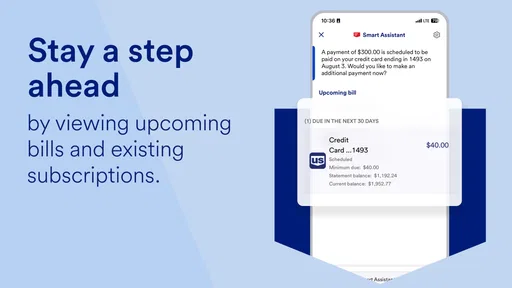
- Bill pay and transfers are organized in one central dashboard.
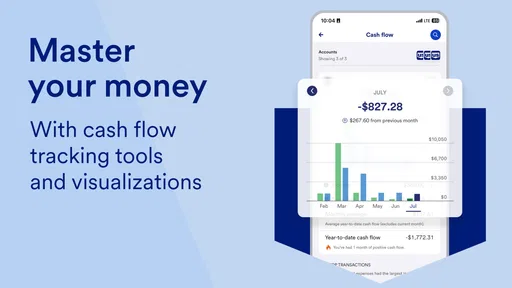
- Spending insights can help users monitor account activity and habits.
Limitations of U.S. Bank Mobile Banking
- Some features may require an eligible U.S. Bank account or card.
- Mobile deposit limits can vary and may restrict larger checks.
- Certain transactions may take time to appear in the account history.
- The app depends on a stable internet connection for most functions.
- Some users may find the interface busy when navigating multiple products.
Similar Picks in This Category
View All
Google Wallet
Google LLC4.3

Airtel: Recharge, Bank & Loans
Airtel4.0

PayPal - Pay, Send, Save
PayPal Mobile4.2

DANA Indonesia Digital Wallet
PT Espay Debit Indonesia Koe4.5

Binance: Buy Bitcoin & Crypto
Binance Inc.4.8

Cash App
Block, Inc.4.7
Frequently Asked Questions
What can I do with the U.S. Bank Mobile Banking app?
The U.S. Bank Mobile Banking app lets customers manage many everyday banking tasks from an Android or iOS device. After signing in, you can review account balances and transactions, transfer money, deposit eligible checks, pay bills, send money with supported services, manage cards, locate branches or ATMs, and receive account alerts. Available features may vary depending on your account type, device, location, and U.S. Bank enrollment status.
Is the U.S. Bank Mobile Banking app safe to use?
U.S. Bank Mobile Banking includes security features designed to protect access to your financial information, such as encrypted connections, login verification, biometric sign-in on compatible devices, and fraud or account alerts. However, no banking app removes every risk. Download it only from the official Google Play Store or Apple App Store, keep your device updated, avoid public Wi-Fi for sensitive activity, and never share passwords or verification codes.
Do I need a U.S. Bank account to use the app?
Yes, the app is primarily intended for customers who have eligible U.S. Bank accounts or services and online banking access. You generally need to enroll or sign in with your U.S. Bank credentials before using account management features. People without an account may still be able to explore certain public information, such as ATM or branch locations, but full functionality requires an eligible relationship with U.S. Bank.
Can I deposit checks and transfer money through U.S. Bank Mobile Banking?
The app supports convenient services such as mobile check deposit and transfers, although eligibility, limits, processing times, and availability can differ by customer and account. For a check deposit, you typically photograph both sides of the endorsed check and follow the on-screen instructions. Transfers may include movement between eligible accounts or other supported recipients. Always review the details and confirmation before submitting a transaction.
Are there fees or device requirements for using U.S. Bank Mobile Banking?
Downloading and using the U.S. Bank Mobile Banking app may not carry a separate app access fee, but standard account charges, transaction fees, mobile carrier data costs, or fees for particular services can still apply. The app requires a compatible Android or iOS device and an up-to-date supported operating system. Some functions, including biometric login, mobile deposit, or alerts, may require additional device permissions or compatible hardware.
